Photoshop - Helping a Noob

  • The masquerade of murder returns! A new game of Vampires Amongst Us has begun. Unmask the killers, trust no one, and try to survive the night. Find out more and sign up now!

Disciple of Nagash

Libidinosus
Administrator
True Blood
Feb 12, 2008
28,011
Yorkshire
Zombies
13,979
So I have finally got my hands on Adobe Photoshop CS4.......and I have no idea how to use the bloody thing!

I think myself quite savvy on a PC, but this has to be one of the most unfriendly programs for new users, unless I want to read through hours a mind numbing help texts.

Now I have seen that many of you on this site use the program so can you help me?

I want to know things such as:

Selecting say a model out of one pic and putting it into another (such as in CN's banner).
Changing colours etc of whatever I have selected.
How to make things look 3D providing it is not excessively complicated.

Anybody?
 
Deviant Art has many fine PS tutorials, I'd start there, these things can be quite baffling at first, but easy to get the hang of. In most cases there are numerous ways to get what you want but ease & time economy means it's best to know as many ways as you can.

Selecting an area is about the best example of these 'numerous ways'. If it is on a distinct background, say white or other single colour, use Quick Select tool to select broad areas, increase the size of brush to increase the area each stroke selects or Magic Wand to select specific areas at once, change the Tolerance value to change how many variations on the colour you click are selected. Other ways are Pen Tool & Quick Mask but they're a bit trickier so I'll let DA help out their. DA is your friend and the best site in the world.

Changing the colours of this area, again, there are several ways. Image > Adjustments > Colour Balance allows you to change the overall colour levels, Desaturate will remove all colour without changing the image to Greyscale so it's easier to substitute another colour using Image > Adjustments > Photo Filter (which has several fixed colours & allows you to select your own) or a Fill/Adjustment Layer, right click the layer you want to change in Layers palette (right hand side of screen) then choose Solid Colour to apply a single colour. You can then change the blend mode (how the colour interacts with the layer below) & opacity as per preference.

I'm afraid I can't help with 3D, as I don't use that function but I think you have to create the 3D model in another program such as Maya, 3dS Max, that sort of thing, then import them into PS. Adobe Illustrator has basic 3D functions, but basic they certainly are.
 
When I think about it I might have a good tip for choosing an individual model (it works on "normal" PS at least). Use a white background when taking a pic of a model and then use the magic wand tool to choose the white area. Then right click and choose "select inverse" and voilla... the model is chosen (why does that sound strange?).
 
Ah i'm big on CS4. Love the program. Just as a mindless plug, here's some of my work;

http://grimmjow-akutabi.deviantart.com/

An effective way to make things look 3D is to add a shadow. That's quite obvious but by creating a shadow for the picture it adds a sense of depth. Also, depending how 2D the object is using a Perspective change (Ctrl+T the Image, then Right Click> Perspective) or a very slight Bevel/Emboss can work wonders. (Personally I never really use the latter though).

Using a Magic-Wand to select images is a mixed bag. It kills all transparent pixels and in some cases takes part of the picture out too (Due to natural lightning and shading it'll next be the same white tone all over you see.)

I reccomend working with 1-2 techniques at a time and just have some fun. Also, use renders of things for now as opposed to cutting them out yourself. You'll save time, trust me.

Oh- and for changing colours of things edit the Hue/Saturation. (It's in the Image tab if I recall correctly.)
 
Woohoo!

Thanks to your help on here I can know select the image I want, sharpen up the edges etc, adjust the colour.

I'm quite proud of myself xd

Still have much to learn, however practise makes perfect!

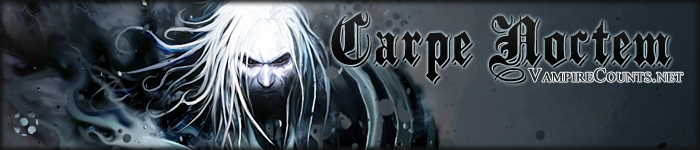
So for all your photoshop experts out there, how would you go about make in the CN banner?
 
Simple enough:

1. Make a basic banner-sized canvas in the right pixel dimensions, & paste your background image onto it.
2. Select the two model images you'll be using & paste them into a new layer each. It will automatically create a new layer for each image you paste in. You are free to fudge the images how you like, press Ctrl+T to bring up Transform tools to easily resize objects, use the corner squares to avoid distorting them.
3. Add the title using Type tool, then you can faff about with fonts, colours etc from the toolbar & Transform, as above.
4. Add shadows, bevelled edges etc by selecting the layer & picking 'Fx' from the bottom of the layers pallette, experiment all you want, Ctrl+Alt+z is your friend.
 
Some great help there Ophidicus. I'm definitely getting more confident. Ok, next question:

How do I bring up the properties of an open image so I can tell the dimensions?

Then how do I design a brand new image from scratch using these set dimensions?
 
No probs dude :)
Image > Image Size to view or change the dimensions (you can set it to inches, mm, pixels, etc.), File > New > change the measurement to pixels & enter the same ones. You'll have to write them down if you forget easily :P keep an eye on the resolution, 72pixels per inch is the size you want for screens (i.e. for web banners) but better to have 150-300 for printing. After you've entered the ones you want use 'save preset' to keep them for the future.
 
Ophidicus said:
Simple enough:

1. Make a basic banner-sized canvas in the right pixel dimensions, & paste your background image onto it.
2. Select the two model images you'll be using & paste them into a new layer each. It will automatically create a new layer for each image you paste in. You are free to fudge the images how you like, press Ctrl+T to bring up Transform tools to easily resize objects, use the corner squares to avoid distorting them.
3. Add the title using Type tool, then you can faff about with fonts, colours etc from the toolbar & Transform, as above.
4. Add shadows, bevelled edges etc by selecting the layer & picking 'Fx' from the bottom of the layers pallette, experiment all you want, Ctrl+Alt+z is your friend.

In regards to step one, I normally work on a larger sized canvas and shrink it down at the end. It normally works best.

Example being i'll use a 1600x12000 Canvas to create a 1280x960 desktop.
 
I do that with digital paintings & such but it doesn't matter so much on things that aren't going to be very big anyway. I find the image pixellates too much when zoomed out to a manageable on-screen view. That said you could feasibly do a banner at 2x size & still have the full image on screen.
 
Well as you can see, the new banner is now up xd A big thank you to all your help.

Now next thing on my list. We are introducing a medal system, little medals that will go on your profile on the left handside of your post.

I've already figured how to put in custom shapes, however I can't find a circular medal one - any suggestions?
 
Disciple of Nagash said:
Now next thing on my list. We are introducing a medal system, little medals that will go on your profile on the left handside of your post.

I've already figured how to put in custom shapes, however I can't find a circular medal one - any suggestions?

No advice on this one? Don't let me down :(

I also have another request, though I'm not sure if this one is feasible.

If I was to take a PDF like the Invocation, can either Acrobat or Photoshop analyse it and break it down it its various components. For example if I wanted the parchment background without the writing, could it do that?
 

About us

  • Our community has been around for many years and pride ourselves on offering unbiased, critical discussion among people of all different backgrounds. We are working every day to make sure our community is one of the best.

Quick Navigation

User Menu